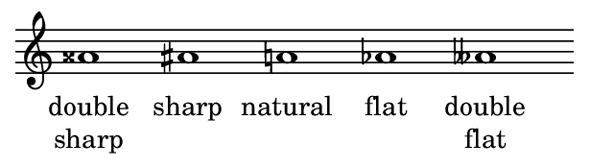
Accidentals in Lilypond

sharp pitch add is to the note name.
flat pitch add es to the note name.
double sharp pitch add isis to the note name.
double flat pitch add eses to the note name.
half-sharp add ih to the note name.
half-flat add eh to the note name.

For example:

gisis1 gis g ges geses
accidentals

Quarter tones — series of A’ with increasing pitches.

aeseh1 aes aeh a aih ais aisih

quarter tones

Accidentals are printed automatically, but you can also print them manually. A reminder accidental can be forced by adding an exclamation mark ! after the pitch. A cautionary accidental (i.e. within parentheses) can be forced by adding a question mark ? after the pitch. Both ! and ? can also be used to forced natural signs.

cis4 cis cis! cis? | c c c! c?

forced accidentals

OCR Text from PDF Document

Today, I had to convert a scanned 3-page PDF file back into a editable document. So, open source software to the rescue. I was able to complete the task with the help of:

  • tesseract — for OCR, and
  • imagemagick — for converting PDF pages to an image format that tesseract accepts.
  1. Installing the software

    sudo apt-get -y install tesseract-ocr imagemagick

  2. Convert PDF pages to image

    convert -density 300 -depth 8 scan.pdf[0] scan0.png
    convert -density 300 -depth 8 scan.pdf[1] scan1.png
    convert -density 300 -depth 8 scan.pdf[2] scan2.png
    

    convert is a member of the amagemagick tools. You can use it to convert between image formats as well as resize an image, blur, crop, despeckle, dither, draw on, flip, join, re-sample, and much more.

    Here, I’m only using two options:

    -density width
    to set the resolution of an image for rendering to devices. The default unit of measure is dots per inch. The default resolution is 72 dpi.

    -depth value
    to set the number of bits in a color sample within a pixel.

    The numbers between the brackets mark the page in the PDF document to be converted. Of course, as any programmer can tell you, you start counting at zero.

  3. OCR page images to text

    $ tesseract scan0.png scan0.txt
    Tesseract Open Source OCR Engine v3.02.01 with Leptonica
    $ tesseract scan1.png scan1.txt
    Tesseract Open Source OCR Engine v3.02.01 with Leptonica
    $ tesseract scan2.png scan2.txt
    Tesseract Open Source OCR Engine v3.02.01 with Leptonica
    

And then just copy the OCR text from the text files into a new document to clear up any typo and reformat the document.

dircolors for better ls listing

ls uses the environment variable LS_COLORS to determine the colors in which the filenames are to be displayed. This environment variable is usually set by a command in the .bashrc file like
eval 'dircolors some_path/dir_colors'
to create a customize .dircolors file, use the command

dircolors -p > .dircolors

and then edit the .dircolors file.

for example, change the color of execute permission to red with: EXEC 00;31

The comments in the generated .dircolors file already listed the color codes.
ISO 6429 color sequences are composed of sequences of numbers separated by semicolons. The most common codes are:

Attribute Codes:
00 none — to restore default color
01 bold — for brighter colors
04 underscore — for underlined text
05 blink — for flashing text
07 reverse — to reverse background and foreground colors
08 concealed — to hide text
Text Color Codes: Background Color Codes
30 for black foreground 40 for black background
31 for red foreground 41 for red background
32 for green foreground 42 for green background
33 for orange foreground 43 for brown background
34 for blue foreground 44 for blue background
35 for purple foreground 45 for purple background
36 for cyan foreground 46 for cyan background
37 for gray foreground 47 for gray background
Extra Text Color Codes: Extra Background Color Codes
90 dark gray 100 dark gray background
91 light red 101 light red background
92 light green 102 light green background
93 yellow 103 yellow background
94 light blue 104 light blue background
95 light purple 105 light purple background
96 turquoise 106 turquoise background
97 white 107 white background

Java Primitive Data Types

Type Length Range
byte 8-bit signed two’s complement integer. minimum: -128; maximum: 127 (inclusive)
short 16-bit signed two’s complement integer. minimum: -32,768; maximum: 127 (inclusive)
int 32-bit signed two’s complement integer.
in Java 8 and later: int can represent an unsigned 32-bit integer.
signed — minimum: -231; maximum: 231-1 (inclusive)
unsigned — minimum: 0; maximum: 232-1
long 64-bit signed two’s complement integer.
in Java 8 and later: int can represent an unsigned 64-bit integer.
signed — minimum: -263; maximum: 263-1 (inclusive)
unsigned — minimum: 0; maximum: 264-1
float single-precision 32-bit IEEE 754 floating point. See Java Language Specification. Don’t use for precise values, such as currency.
double single-precision 64-bit IEEE 754 floating point. See Java Language Specification. Don’t use for precise values, such as currency.
boolean not precisely defined true and false
char single 16-bit Unicode character minimum: '\u0000' (0); maximum: '\uffff' (65,535) inclusive
Data Type Default Value
byte 0
short 0
int 0
long 0L
float 0.0f
double 0.0d
boolean false
char '\u0000'
String (or any object) null

Generating new ssh keys

Use the ssh-keygen command to generate the key pairs.

ssh-keygen -b bits -a rounds -C comment -v
ssh-keygen -t ed25519 -a rounds -C comment -v

Note: If invoked without any arguments, ssh-keygen will generate an RSA key for use in SSH protocol 2 connections. (equivalent of -t rsa.)

For example:

ssh-keygen -b 7680 -a 100 -C 'Linux Mint Petra 64-bit guest' -v

or for the EdDSA scheme:

ssh-keygen -t ed25519 -a 100 -C 'Linux Mint Petra 64-bit guest' -v

By default, the keys are stored in ~/.ssh as id_rsa and id_rsa.pub.

To show the fingerprint of specific public key file:
ssh-keygen -l -v